
Active Directory Computer Object to Omnissa Workspace ONE UEM
11 May 2026 • 6 min read
Recently, I worked with a customer who needed to assign an application in Omnissa Workspace ONE UEM to an Active Directory group. While this seemed straightforward initially, we discovered a critical limitation: the target was not a user group, but rather an organizational unit (OU) containing computer objects. Since Omnissa Workspace ONE UEM does not currently support syncing device or computer objects from Active Directory, a direct assignment approach was not viable.
To solve this problem, we pivoted to an API-based solution. Rather than assigning applications directly to the OU, we used the Omnissa Workspace ONE UEM API to dynamically tag devices that matched the computer objects in Active Directory.
The key challenge was establishing a reliable matching mechanism between Active Directory computer objects and devices in Omnissa Workspace ONE UEM. We accomplished this by correlating DeviceReportedName values with the corresponding Active Directory hostnames, ensuring accurate device identification.
After validating the API workflow in Postman, we developed a Windows desktop application to wrap this functionality behind a user-friendly admin interface, enabling non-technical administrators to manage the tagging process without direct API interaction.
The Challenge
Workspace ONE UEM is very good at assigning applications, profiles, and policies to smart groups. In many environments, those assignments are driven by users, user groups, devices, platforms, ownership types, organization groups, and other data that UEM already understands.
This customer had a slightly different requirement. Their authoritative grouping already existed in Active Directory, but it was not a user security group. It was based on computer objects in an OU. The administrator wanted to keep that AD structure as the source of truth, then use it to control which Windows devices should receive a Workspace ONE UEM application assignment.
The problem was simple: UEM does not currently sync AD computer objects into the console as assignment targets. That meant there was no direct way to select the OU and assign the application.
The Alternative: Use Tags as the Bridge
Rather than duplicate the customer's operational process, we used Workspace ONE UEM tags as the bridge between Active Directory and UEM.
The logic is straightforward:
- Read computer objects from the selected Active Directory OU or security group.
- Extract the hostname for each computer object.
- Search Workspace ONE UEM for matching devices by name.
- Match the AD hostname to the UEM
DeviceReportedName. - Apply a selected UEM tag to each matched device.
- Use that tag in UEM to build the assignment logic for the application.
This approach keeps Active Directory as the source list while allowing Workspace ONE UEM to use a native object, the device tag, for assignment and operational workflows.
Turning the API Workflow Into an Admin Tool
The first validation was done in Postman. That gave us a clean way to confirm authentication, tenant headers, device search behaviour, tag retrieval, and tag assignment before spending time on a user interface.
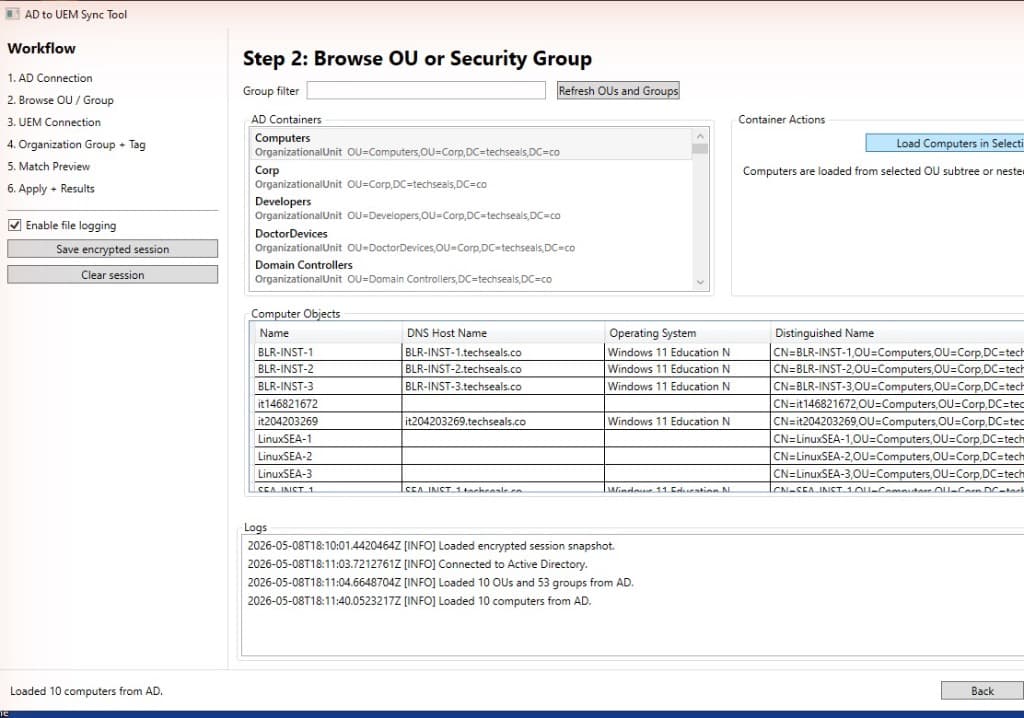
Once the API flow was proven, I built a Windows WPF wizard app called AD to UEM Sync Tool. The tool discovers computer objects from Active Directory, matches them to Workspace ONE UEM devices by name, and applies a selected UEM tag.
The app is designed around the practical steps an administrator needs to complete:
- Connect to Active Directory using an account with read permissions.
- Select an OU or security group that contains the computer objects.
- Connect to Workspace ONE UEM using OAuth client credentials, the
aw-tenant-code, and the UEM API URL. - Choose the target organization group and UEM tag.
- Run the match process and apply the tag to the discovered UEM devices.
Requirements
The tool runs on Windows and uses components most Workspace ONE UEM and Windows administrators will already be familiar with:
- A Windows machine with the .NET 8 SDK.
- RSAT Active Directory PowerShell module.
- Network access to Active Directory LDAP and the Workspace ONE UEM API endpoint.
- An AD admin or service account with read permissions.
- A Workspace ONE UEM OAuth client, client secret,
aw-tenant-code, and API URL.
After a successful Active Directory connection test, the app keeps the AD credential in memory and reuses it for OU, group, and computer retrieval so the admin does not have to keep re-entering credentials during the wizard.
UEM API Calls Used
The tool uses standard Workspace ONE UEM API calls for connection testing, organization group lookup, tag selection, device matching, and tag assignment:
GET /api/system/infoto test the UEM connection.GET /api/system/groups/searchto retrieve organization groups.GET /api/system/groups/{ogId}/tagsto list tags for the selected organization group.POST /api/mdm/tags/addtagif a tag needs to be created.GET /api/mdm/devices/search?searchby=name&id={name}to find devices by name.POST /api/mdm/tags/{tagId}/adddevicesto apply the tag to matching device IDs.
The API requests use the standard bearer token, tenant code, and JSON accept headers:
Authorization: Bearer <access_token>aw-tenant-code: <tenant code>Accept: application/json;version=1
OAuth and Regional Token URLs
For authentication, the app uses Workspace ONE UEM OAuth client credentials. In the UEM Console, administrators can create an OAuth client under Groups & Settings > Configurations > OAuth Client Management and provide the client ID and client secret in the app wizard.
The app supports the common regional token endpoints:
- NA:
https://na.uemauth.vmwservices.com/connect/token - EMEA:
https://emea.uemauth.vmwservices.com/connect/token - APAC:
https://apac.uemauth.vmwservices.com/connect/token - UAT:
https://uat.uemauth.vmwservices.com/connect/token
For tenants with a custom token URL, the app can use the tenant-specific endpoint instead.
Security and Logging
Because this workflow touches directory data and UEM API credentials, the implementation handles sensitive values carefully. Passwords and client secrets are held in memory as SecureString, and optional session snapshots are encrypted with DPAPI for the current Windows user. Logs redact token and secret markers and avoid writing full credential payloads.
The app writes logs to %LOCALAPPDATA%\DeviceObject2UEM\logs\ by default. The built-in logs panel shows INFO and ERROR entries, while detailed API diagnostics such as method, URL, status code, latency, and failure snippets are written as VERBOSE entries to the file log.
Why This Pattern Works
This pattern is useful because it does not try to force UEM to become an Active Directory computer object database. Instead, it uses the API to translate the external source of truth into a native UEM control point.
For administrators, the end result is clean:
- Active Directory remains the source for the computer list.
- Workspace ONE UEM remains the source for application assignment and device management.
- Tags provide the shared operational object between both systems.
- The UI removes the need for admins to run manual API calls or scripts.
It is a good reminder that the UEM API can often close gaps where the console does not expose the exact workflow a customer needs.
Need Help With Workspace ONE UEM APIs?
If you are interested in using this tool or would like to take actions in the UEM console that you cannot perform with the UI, please get in touch with our UEM experts. You can also contact us directly using the form at the bottom of this page, or visit our Professional Services contact form.